Activate Your Portal Account
The BlueVoyant Risk Operations Center (ROC) will create the user accounts and give credentials to each portal user. You can also send an email to the ROC, to get access for new users or to remove access from users.
Each user gets a welcome email from noreply@okta.com.
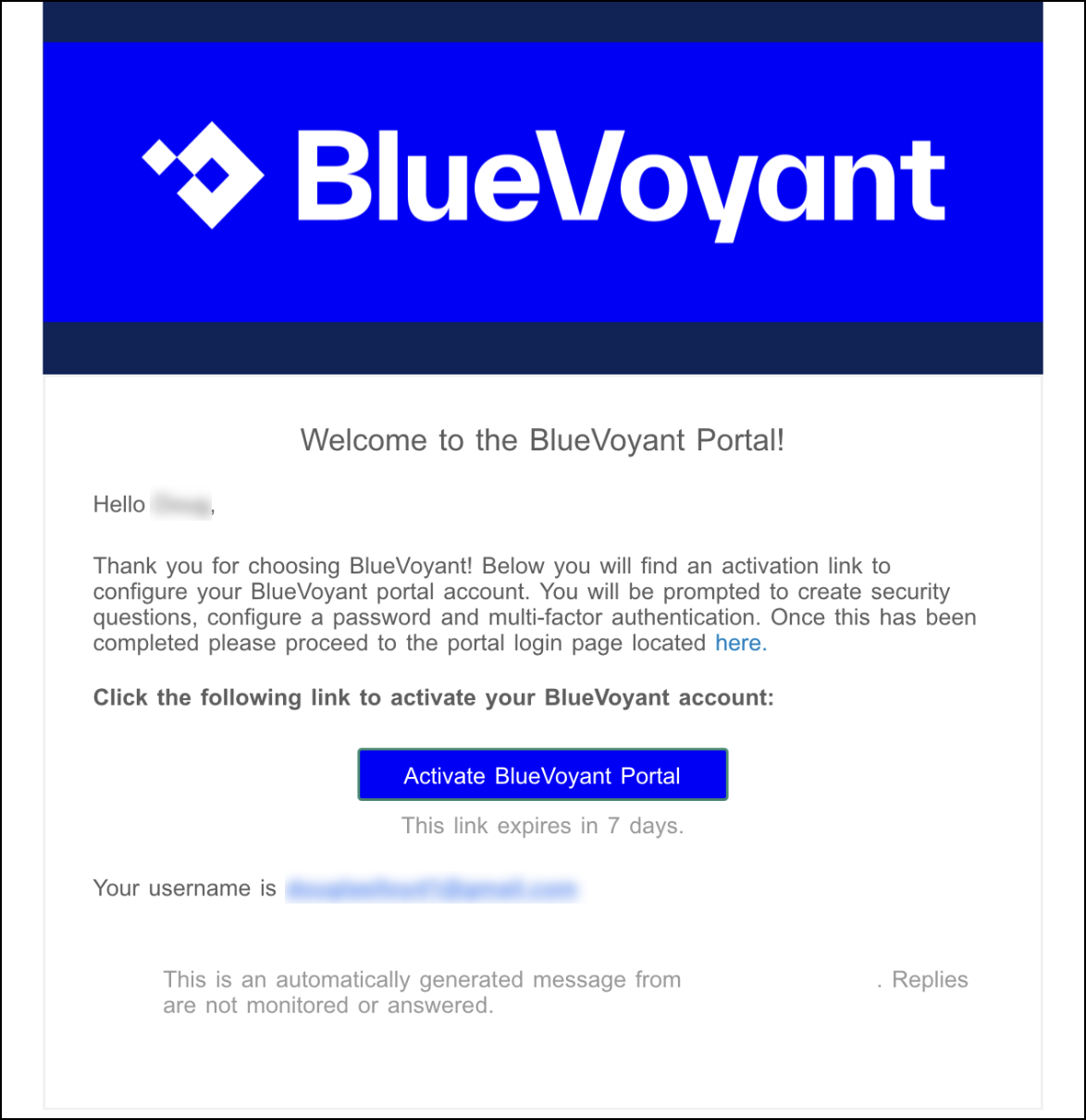 |
In the welcome email, click Activate BlueVoyant Portal.
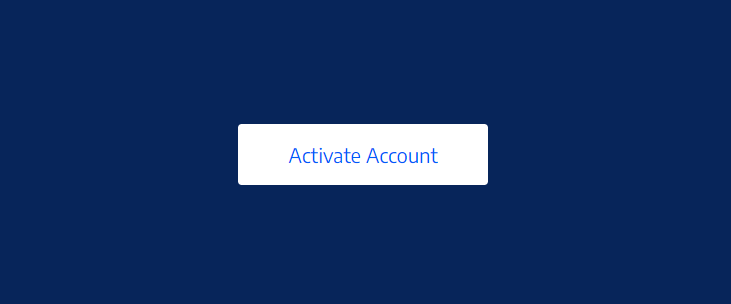
In the web browser window that opens, click Activate Account.
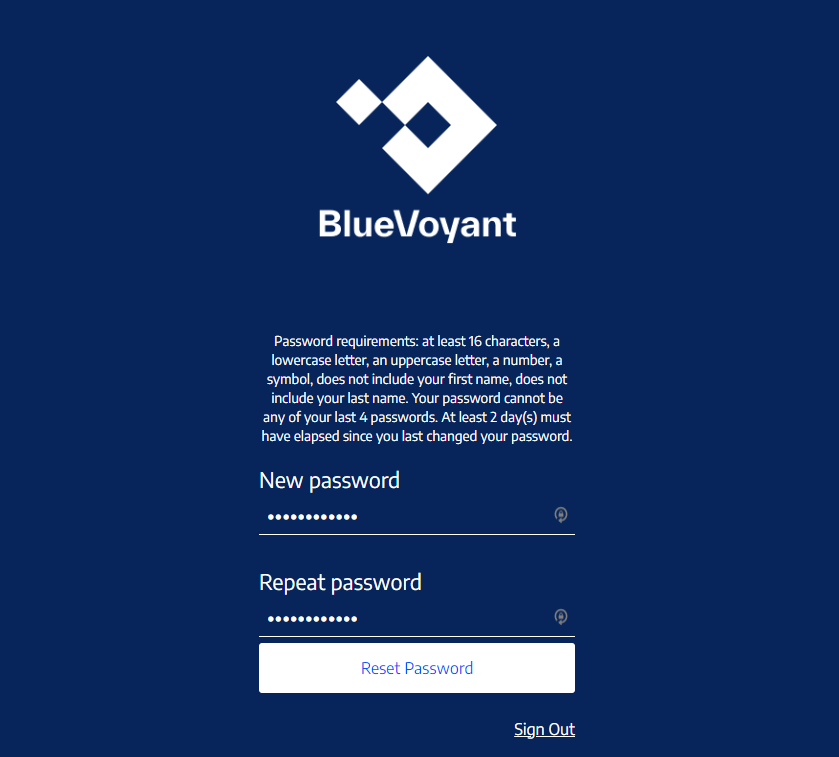
Enter a password in New password and Repeat password, then click Reset Password.
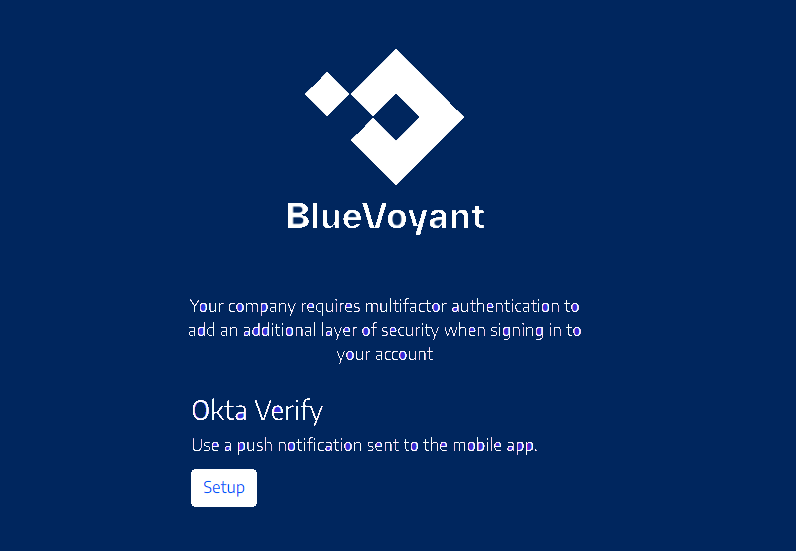
In the next window, click Setup.
Select iPhone or Android for the mobile device that you will use for multi-factor authentication.
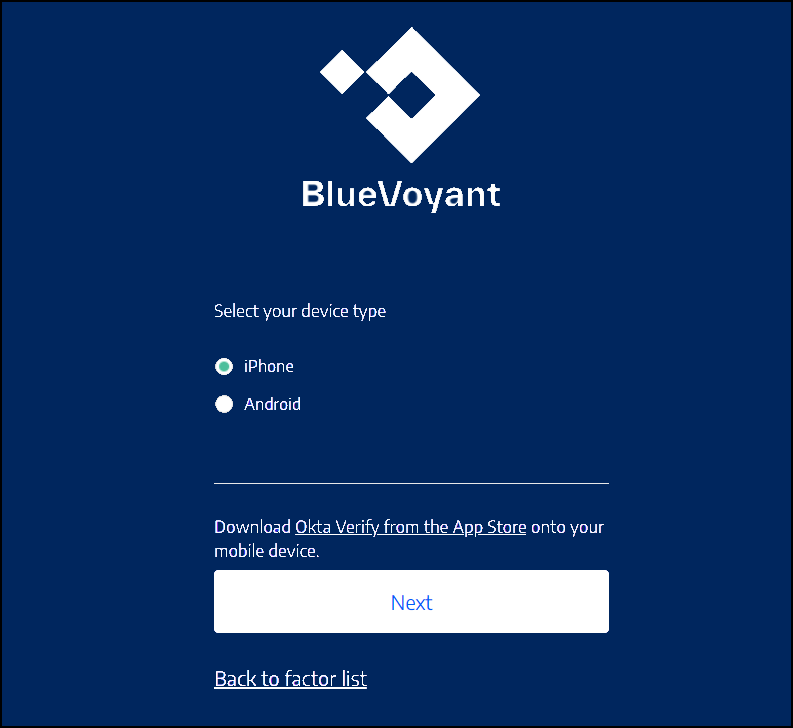
Download the Okta Verify app to your mobile device from the App Store on your device, then click Next.
A QR code shows.
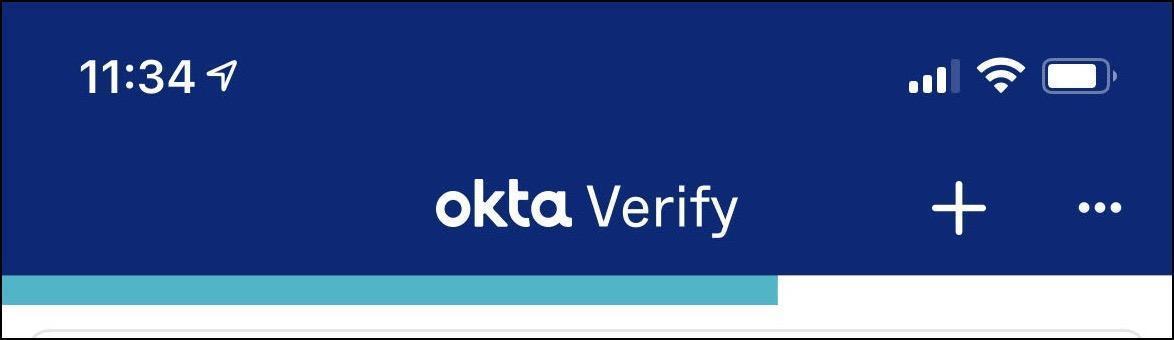
Open the Okta Verify app on your mobile device, and tap +.
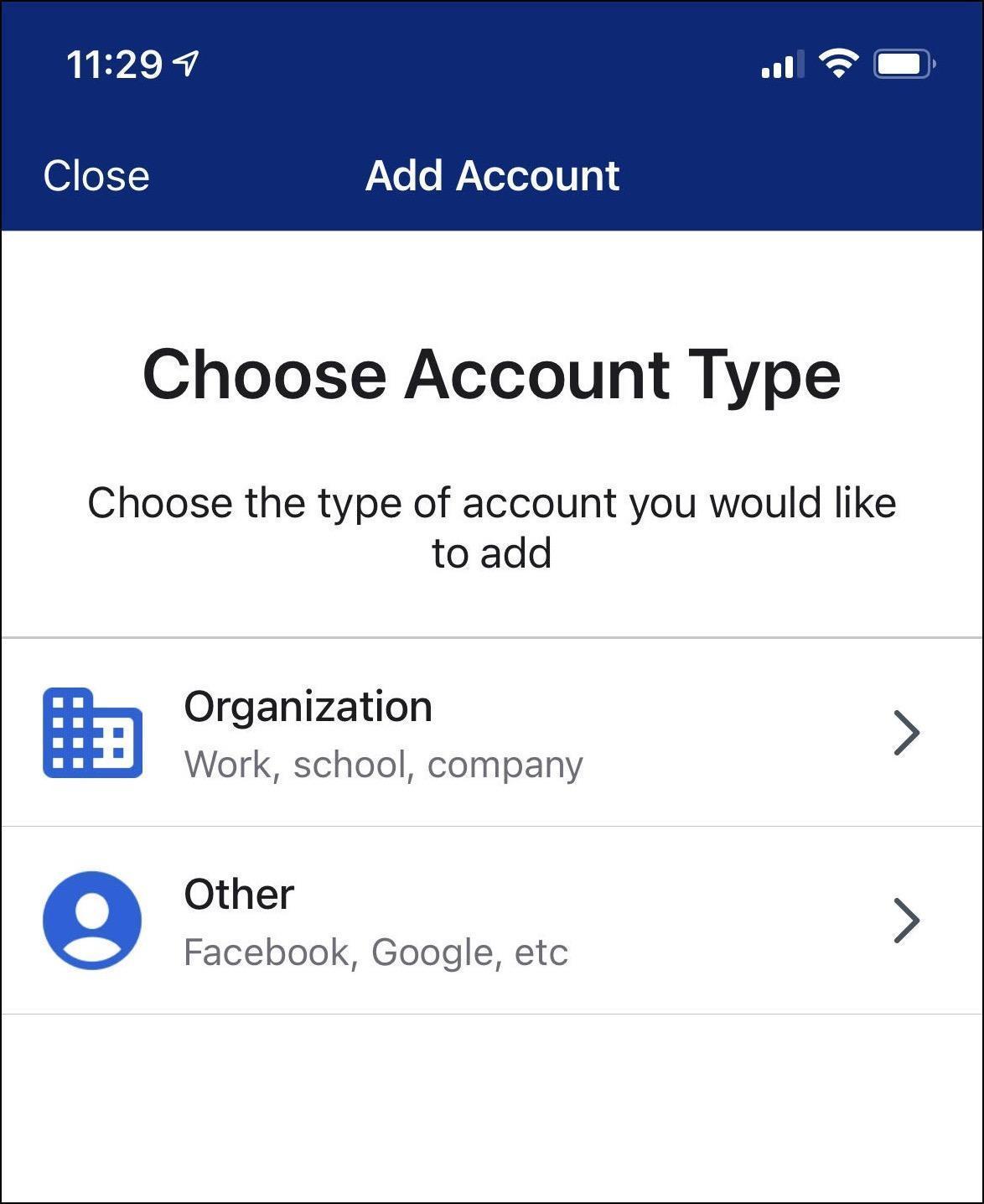
In Choose Account Type, tap Organization.
In Verify To Continue, tap Scan a QR Code.
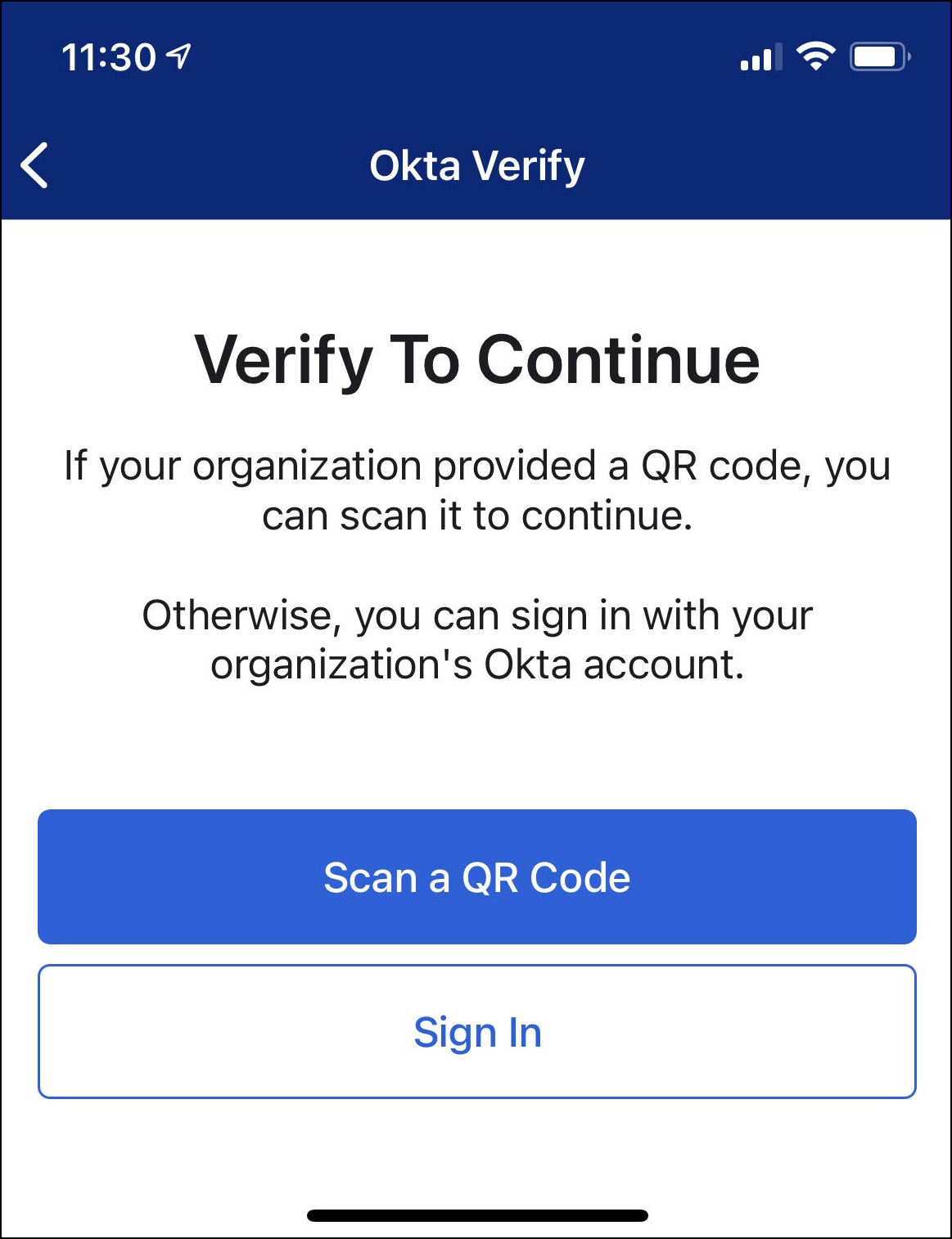
Scan the QR code that shows your web browser.
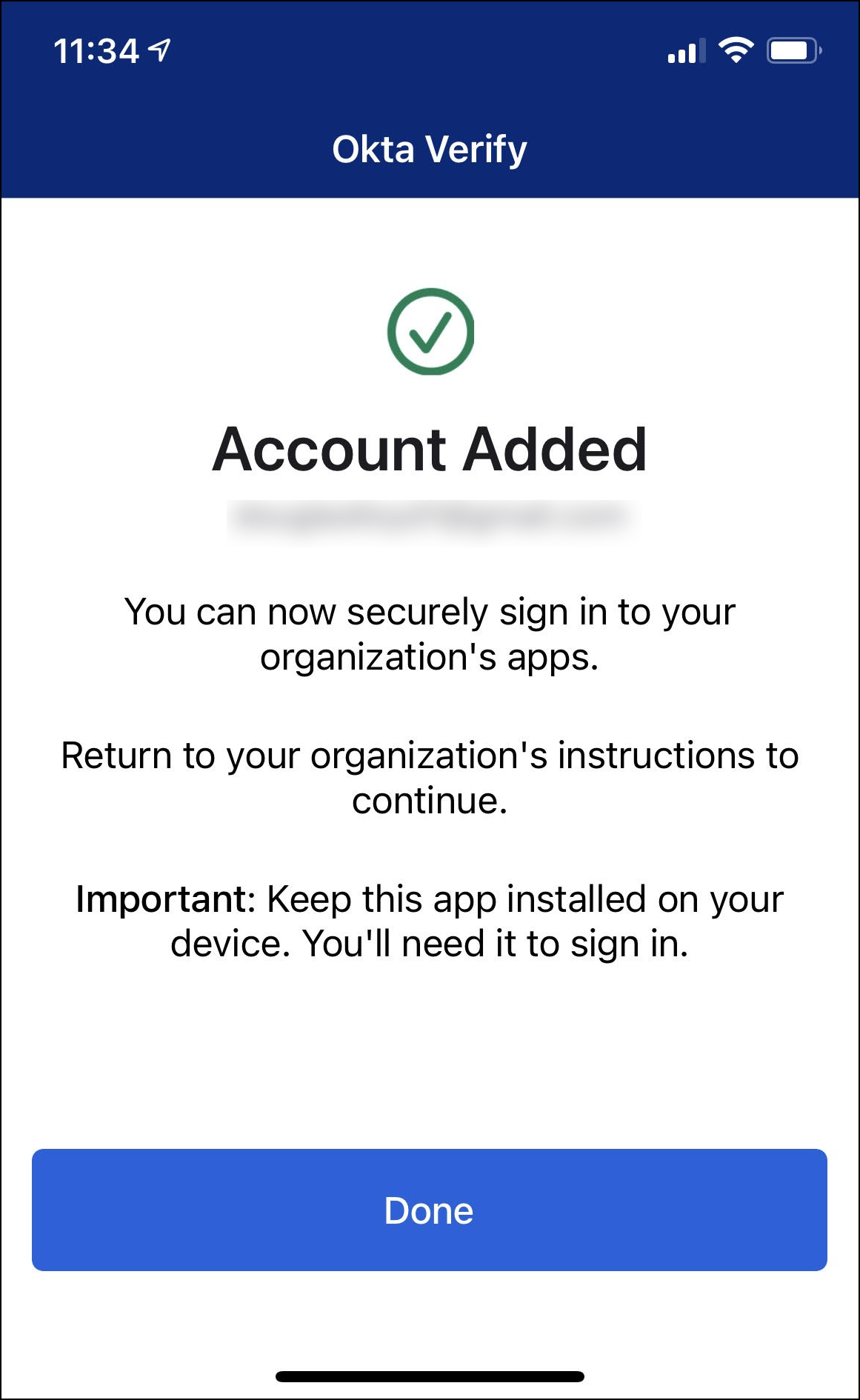
In Account Added, tap Done.
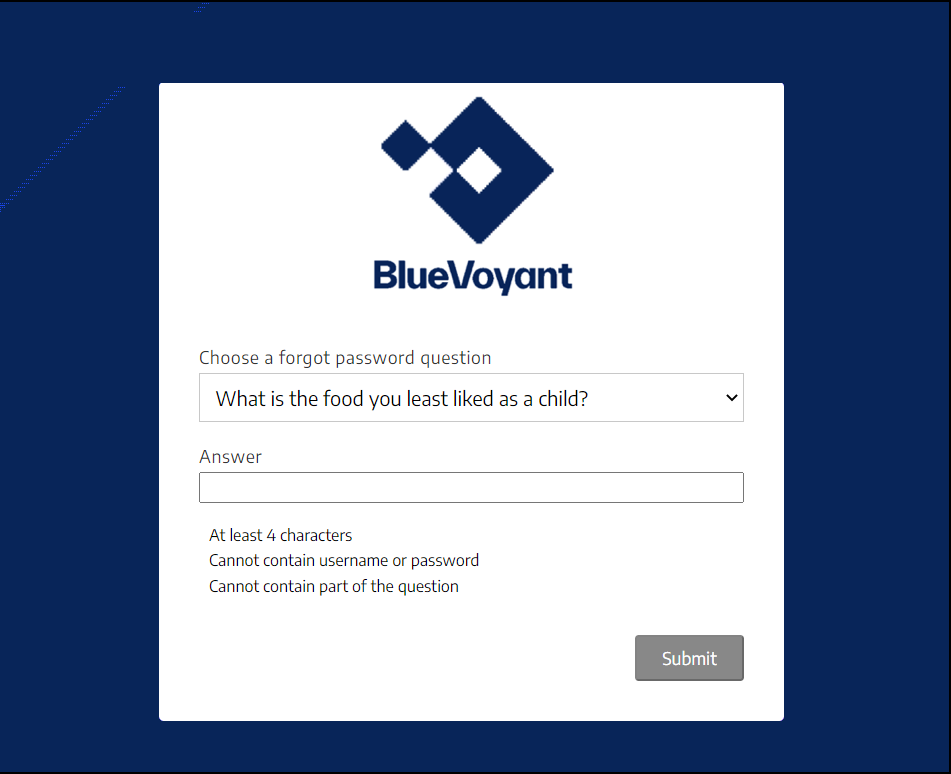
In your web browser, in Choose a forgot password question, select a question, enter an answer, then click Submit.
You will be logged in to the portal.
Log in to the Client Portal
After you authorize your portal account, you can log in to the Client Portal.
Open your browser to: https://portal.bluevoyant.com
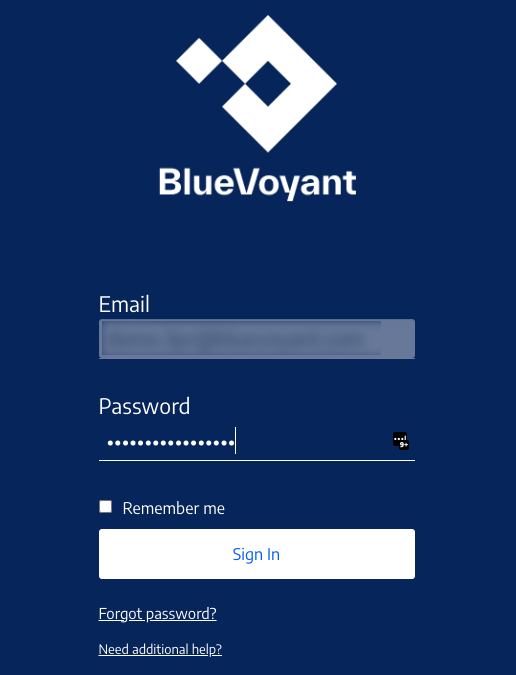
Enter your email and click Next.
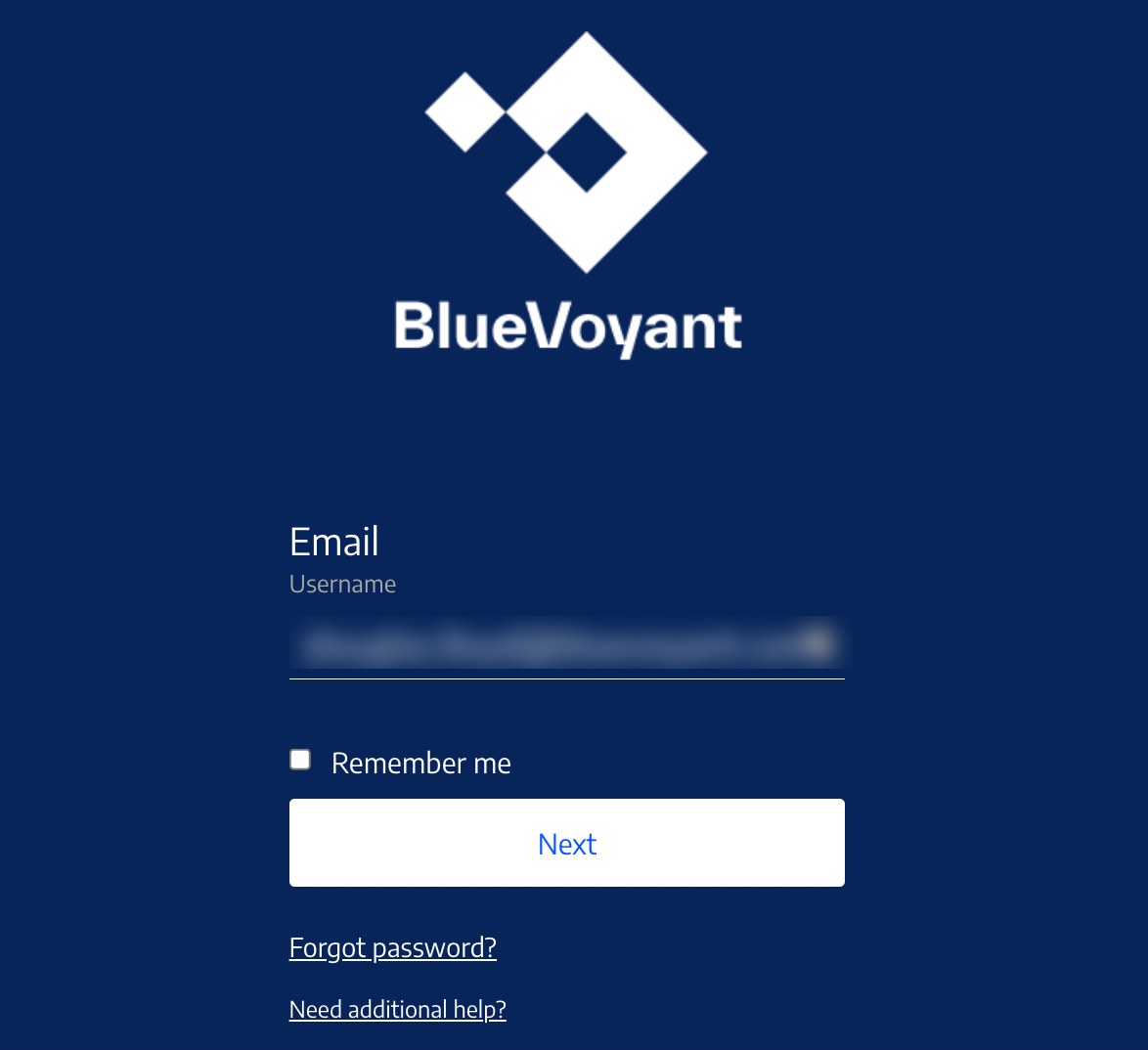
Enter your password and click Sign In.
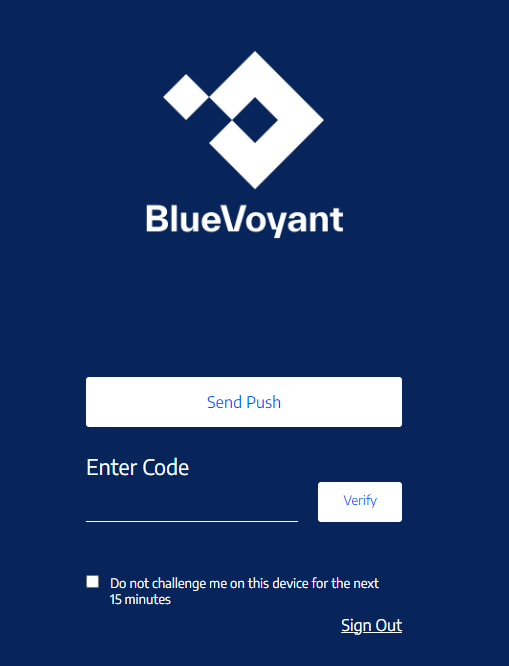
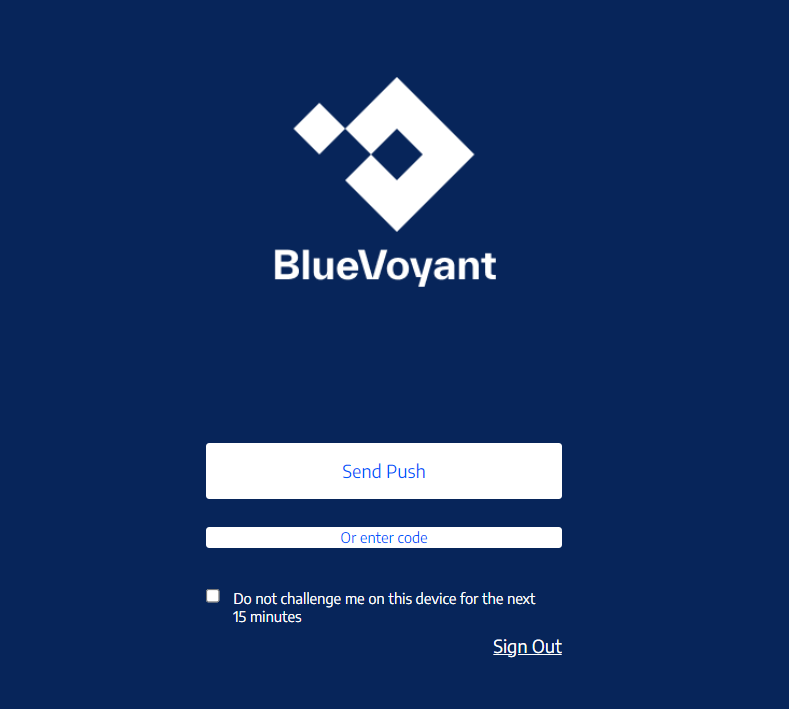
In the next window, click Send Push. In your app, tap Yes, It’s Me.
OR:
Click Or enter code.
Open the Okta Verify app on your mobile device and see the code for your account in the Client Portal.
In the browser window > Enter Code, enter the code and then click Verify.