Changing Column Width
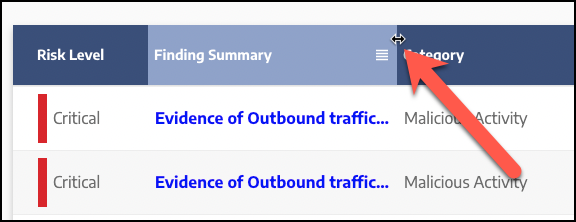
To change the width of any column, hover over the right border of the column in the table header until resize icon ( ) appears, then drag the border left or right:
 |
Note: Changes to column width are not persisted between page visits or user sessions.
You can easily display the full width of one or all columns. Doing this adjusts the column width to accommodate the widest value in that column. To autosize columns, do the following:
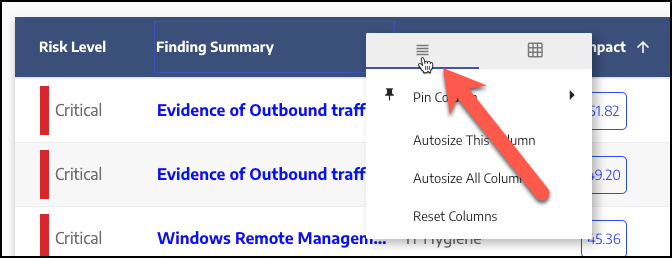
Click the four bars icon on the right of the column header and select the left tab on the context menu if not already selected:
 |
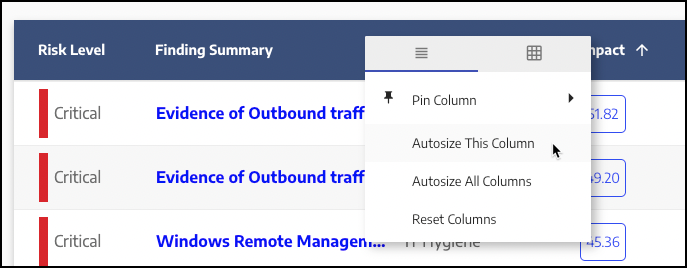
Select Autosize This Column to autosize only the selected column, or select Autosize All Columns to autosize all columns in the table.
 |