Configure Filters on Cases
You can filter the list of cases to quickly see only the cases of selected properties. You can select multiple filters and multiple values for each filter field.
In Findings > Cases, click .
Click and in the list, click a filter option.
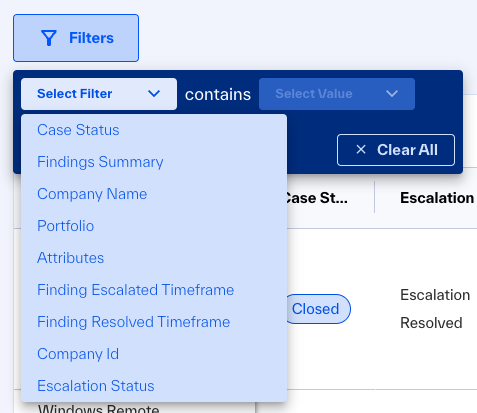
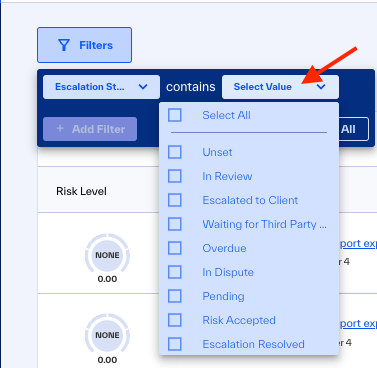
Click and in the list, select or enter one or more values.
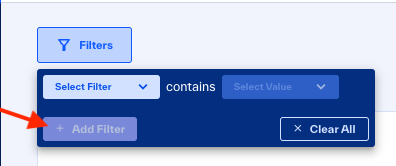
Optional: To add more filters, click .
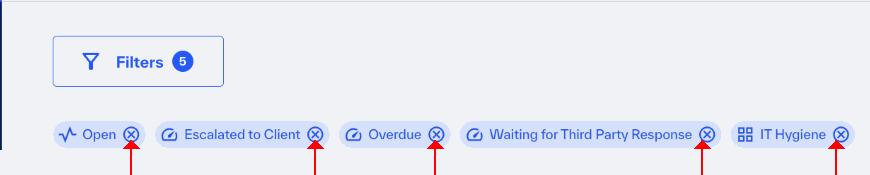
To remove a filter, click the X next to that filter.
 |
Filter Field | Filters findings for: | Values |
Finding Summary | Content in summary information | Enter three or more characters of summary data to select matched companies. |
Company Name | Selected companies that have these findings | Enter three or more characters of a company name to select matched companies. |
Company ID | Selected unique Entity ID | Enter three or more characters of an ID to selected matched companies with IDs. Note
|
Attribute | Companies that have the selected attributes | Enter three or more characters of an attribute to select matched companies with attributes. |
Portfolio | Companies in the selected portfolios | Enter three or more characters of a portfolio name to select matched companies. |
Case Status | Selected status |
|
Escalation Status | Selected escalation status |
|
Finding Escalated Timeframe | See the cases escalated in the selected month or quarter | To filter by timeframe:
|
Finding Resolved Timeframe | See the cases resolved in the selected month or quarter |