User Knowledge Base

Configure Filters on Findings

You can filter the list of findings to quickly see only the findings of a case or scenario. You can select multiple filters and multiple values for each filter field.

To configure filters on Findings:
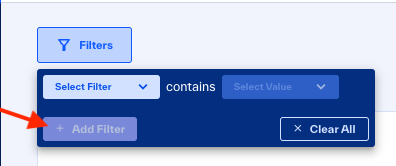
  1. In Findings, click Filters.

  2. Click Select Filter and in the list, click a filter option.
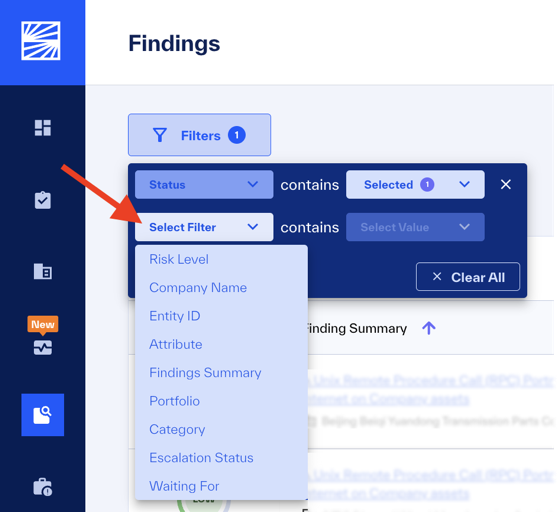
    image166.png
  3. Click Select Value and in the list, select or enter one or more values.
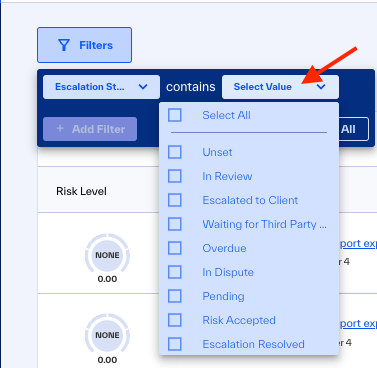
    image167.png
  4. Optional: To add more filters, click Add Filter.

    Filters_AddFilter

To remove a filter, click the X next to that filter.
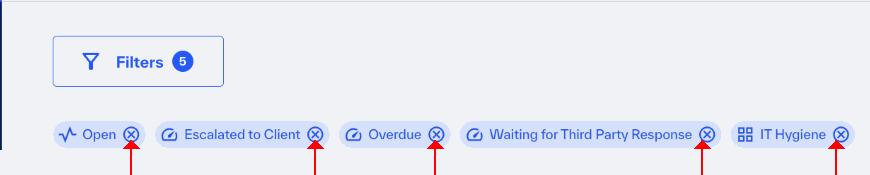
finding filters with emphasis on remove button
Table 9. Filter Fields

Filter Field

Filters findings for:

Values

Risk Level

Selected risk levels

  • Low

  • Moderate

  • High

  • Critical

Company Name

Selected companies that have these findings

Enter three or more characters of a company name to select matched companies.

Entity ID

Selected unique Entity ID

Enter three or more characters of an ID to selected matched companies with IDs.

Note

  • This filter is available only if you requested this service.

  • The name of the filter that you see may be different from ID, if you requested that the ROC configure it with a custom name.

Attribute

Companies that have the selected attributes

Enter three or more characters of an attribute to select matched companies with attributes.

Finding Summary

Content in summary information

Enter three or more characters of summary data to select matched companies.

Portfolio

Companies in the selected portfolios

Enter three or more characters of a portfolio name to select matched companies.

Category

Selected Risk Categories

  • Email Security

  • IT Hygiene

  • Vulnerability Detection

  • Malicious Activity

  • Adversarial Threat

Status

Selected status

  • Open

  • Closed

Escalation Status

Selected escalation status

  • (None) – The finding is not escalated, is for an unmonitored company, or is better than your Risk Threshold.

  • In Review – The ROC reviews the finding before escalation.

  • Escalated to Client – The ROC escalated the finding to you.

  • Waiting for Third Party Response – The ROC expects a response from the company to support further investigation and remediation actions.

  • Overdue – The ROC did not get a response in the configured time.

  • In Dispute – The third party responds to an escalation with “No Plans to Resolve”, which they may do for a bad footprint, a finding that cannot be reproduced, a false-positive finding, or a finding that is not a priority for them.

  • Pending – The escalation response is “Will Resolve” or “Have Already Resolved”, and the escalation requires further action. If the third party responded with “Have Already Resolved”, the escalation is Pending until the ROC validates the remediation.

  • Risk Accepted – The escalation response is that remediation actions are scheduled.

  • Escalation Resolved – The finding is resolved but Open until the platform refreshes.

Waiting For

Findings that have an action for the selected parties

  • (None) – The finding is not escalated, is for an unmonitored company, or is better than your Risk Threshold.

  • BlueVoyant – BlueVoyant has an action for the finding.

  • Client – You can action for the finding.

  • Third Party – The vendor or supplier has an action for the finding.