Configure SSO
Log in to Cyber Defense Platform (CDP) with your email and password.
Click the gear ().
If you do not see the gear, you do not have the required permissions.
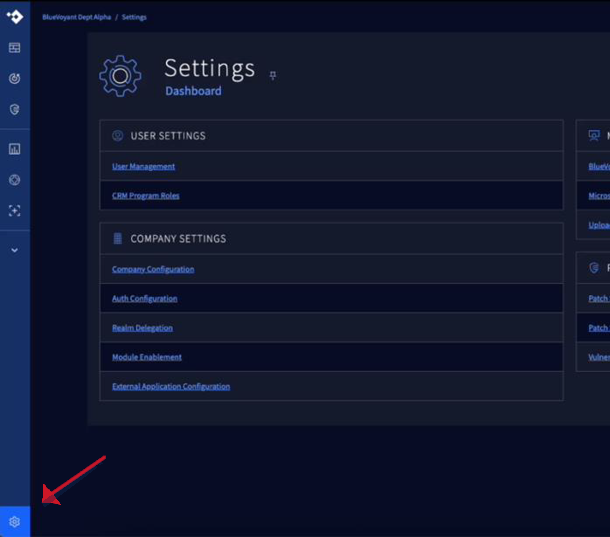
In Settings > Company Settings, click .
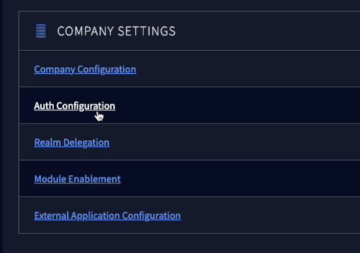
In Auth Configuration > Microsoft Entra, click .
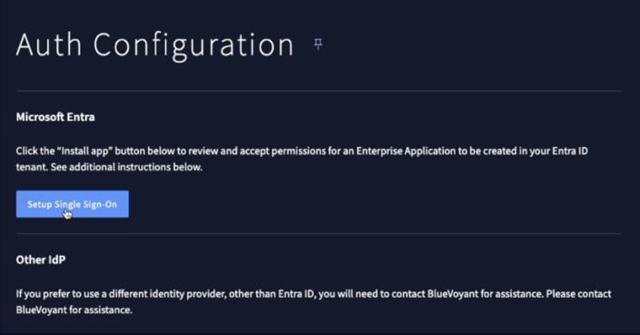
In Setup Entra, click .
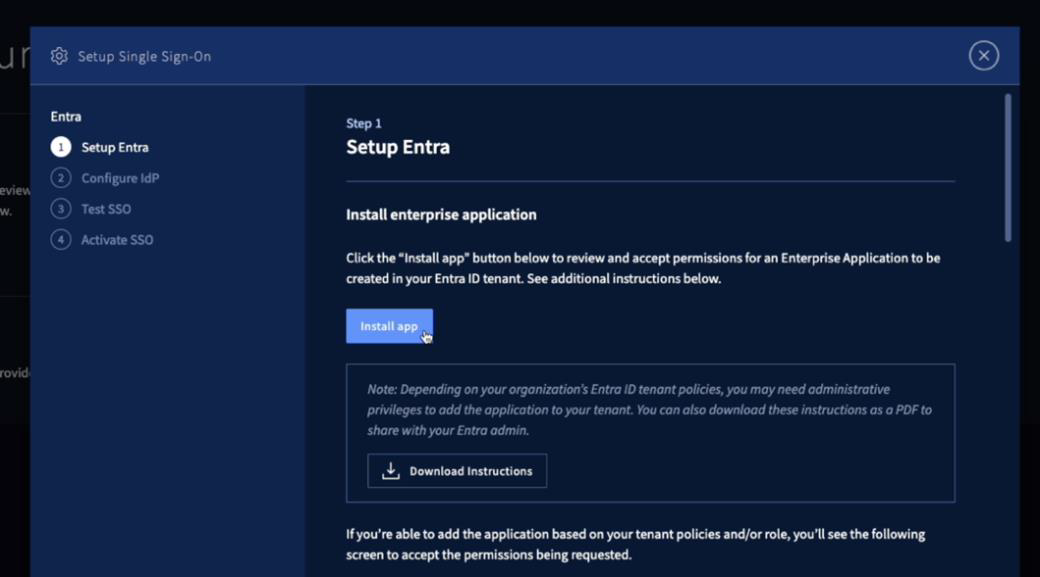
Your browser opens to your Entra ID Enterprise Application configuration for BlueVoyant CDP.
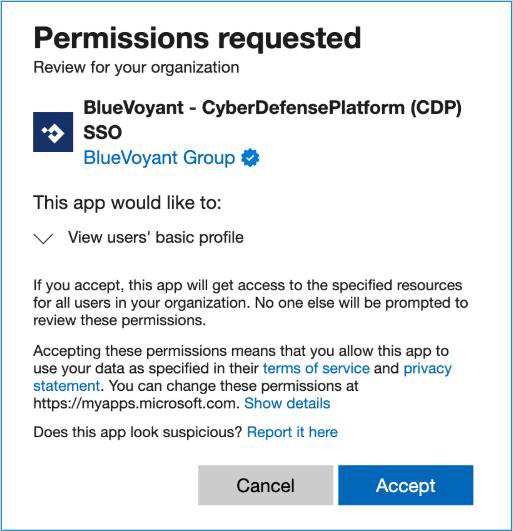
In Permissions requested, click Accept.
Troubleshooting
If the window that opens shows Need admin approval, your Entra ID policies restrict who can add applications, or you do not have the required permissions on Entra ID. Stop and get administrator permissions. When you have permissions, click the link to sign in.
The SSO application gets access to the specified resources for all users in your organization.
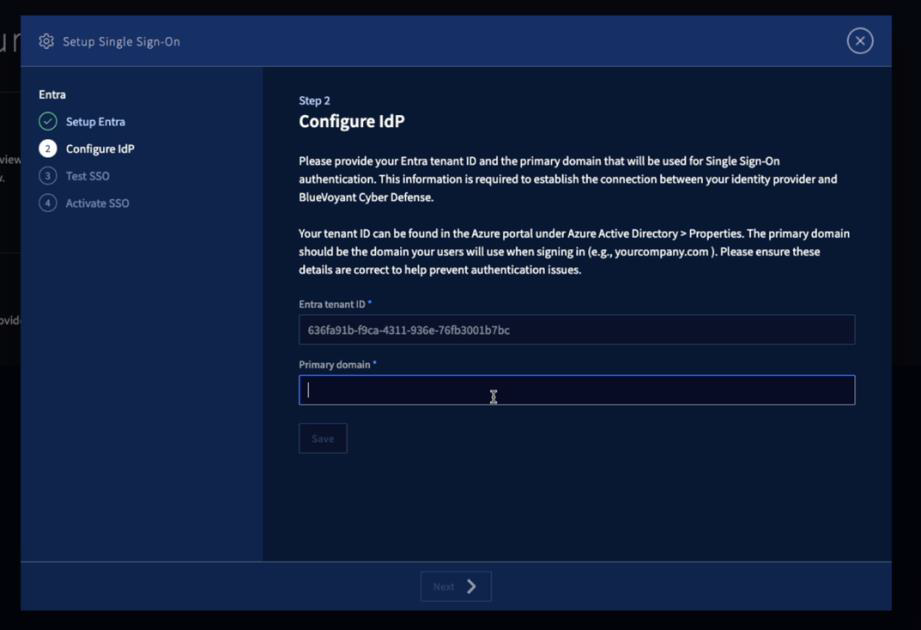
In Configure IdP, your Entra tenant ID shows. Enter the Entra Primary Domain of your organization. You can see this value in your Azure portal in Azure Active Directory > Properties.
Important
This is the domain your users will sign in to. It must be your Entra Primary Domain.
Click Next.
In Test SSO, click Test sign-in.
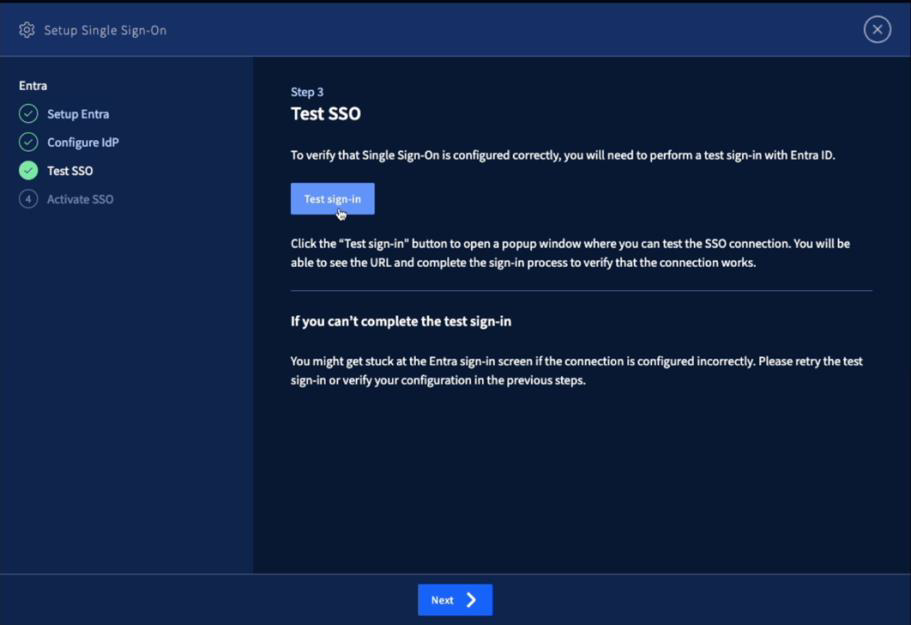
If the test ends on success, click Next.
If the test fails, read the error message and instructions to send a support request.
In Activate SSO, click Activate Single Sign-On.
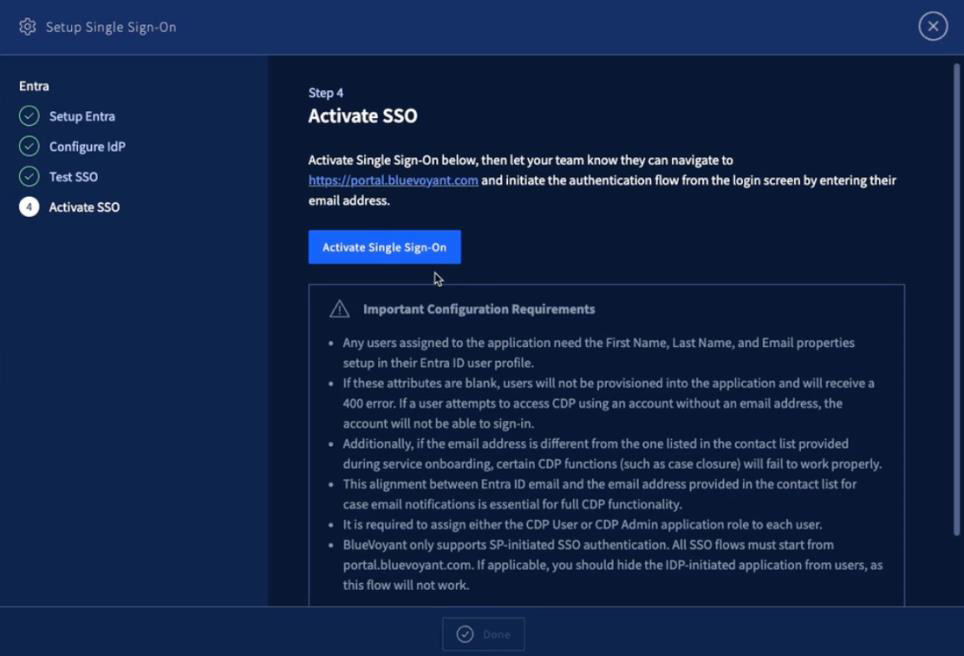
Read the Important Configuration Requirements and make sure your organization can meet all of them before you continue.
Click Done.
Make sure each user has the same access permissions in both Microsoft Entra ID and BlueVoyant CDP.
All users in the SSO primary domain can log in to CDP. For a secure deployment, give roles and permissions to users in both the SSO application and CDP.
All users in the primary domain automatically get the CDP User role, with default read-only permissions (Platform-Viewer). Only a CDP user with the Administrator role can give users other roles with more access permissions.
After you configure SSO on CDP, the CDP role names show in Entra ID.
In Entra ID, open Enterprise Application > BlueVoyant - CDP SSO > Users and Groups.
Select the user.
Select applicable application roles. A user can have multiple roles.
Role
Access
CDP User
Standard user access to CDP (default)
You can select granular permissions for view only, use, or manage through Role-Based Access Control (RBAC) in CDP.
CDP Self-Assessment User
Access for self-assessment functions
DRP User
Digital Risk Protection user access
TPRM User
Third-Party Risk Management user access
TPRM Questionnaire User
Access for TPRM questionnaire functions
(deprecated) CDP Admin
The CDP Admin role is deprecated. Do not use it. Use CDP User and configure admin permissions through Role-Based Access Control (RBAC) in CDP.