Portfolio Management Page
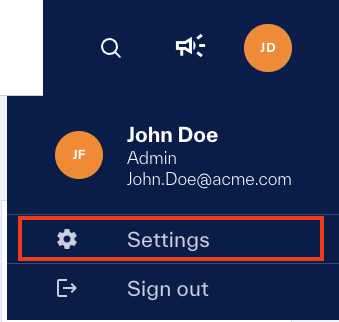
The Portfolio Management page is available to all Admin role users. To get to the portfolio management page, the user will need to hover over their person icon and then click on the Settings link in the menu that appears.
 |
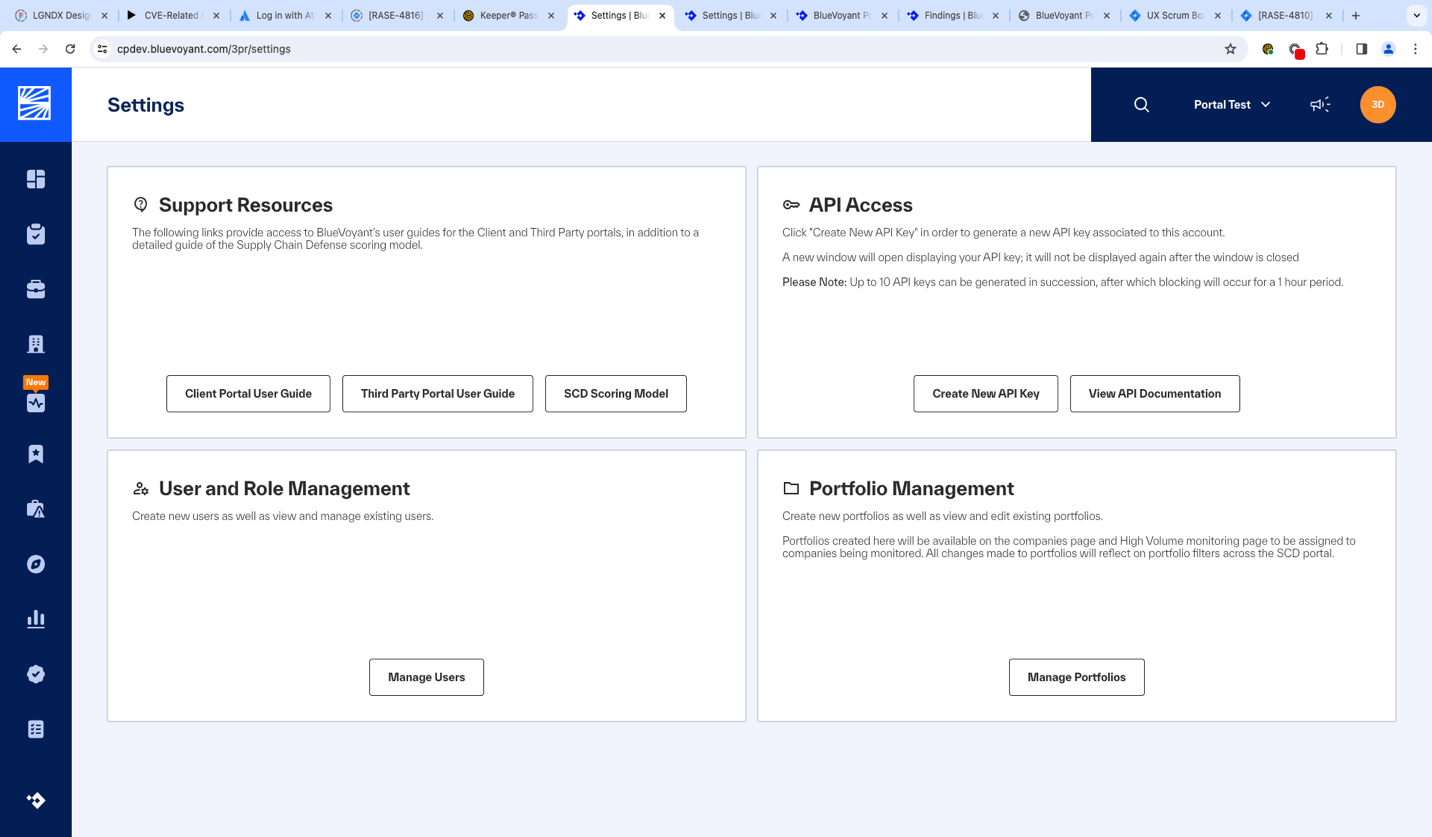 |
Once on the settings page, admin users will have a Portfolio Management tile (this tile is unavailable to other roles). To get to the portfolio management page, click the Manage Portfolios button at the bottom of this widget.
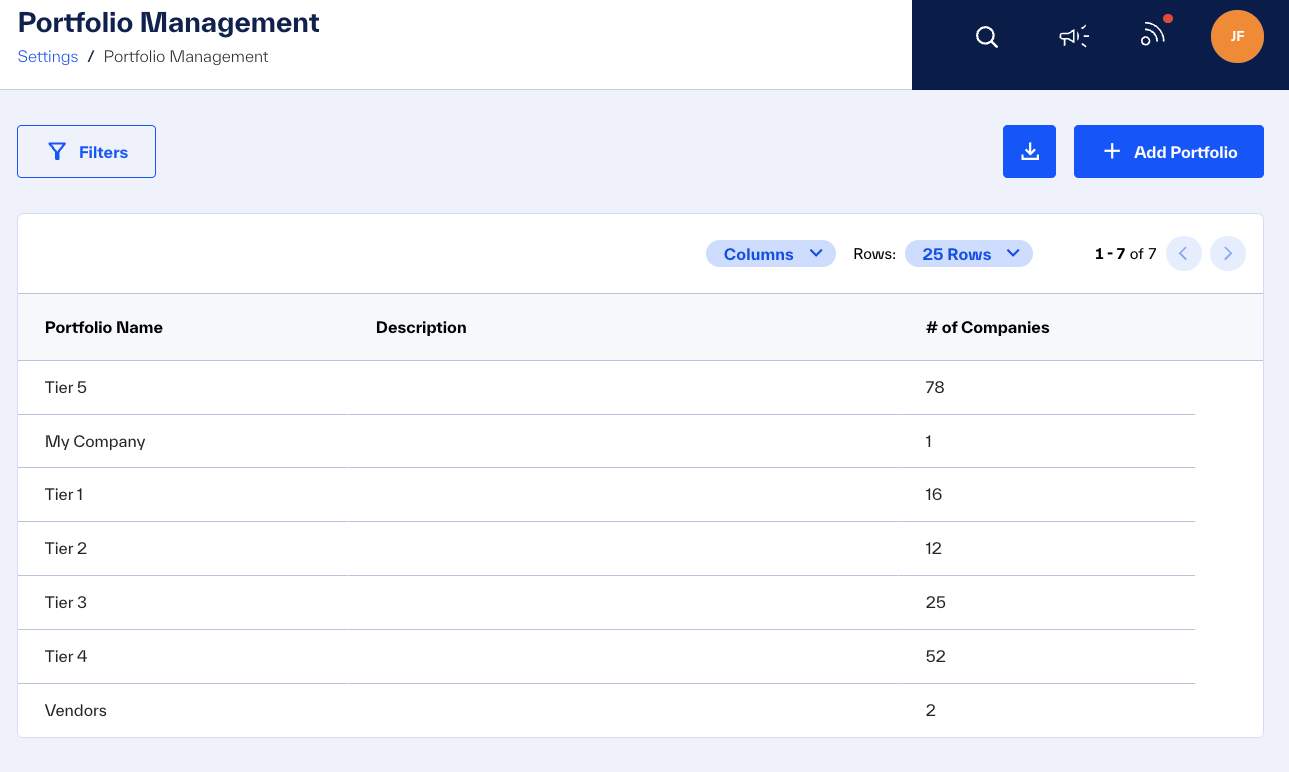
The portfolio management page will enable client admins to view and manage the list of portfolios. From this page, client admins will be able to:
Add new portfolios
Manage existing portfolios
View the list of portfolios and the numbers of companies in that portfolio.
On the portfolio management page, client admins will find the complete list of portfolios defined for the clients account. For each portfolio, the table will display:
The portfolio name
The description for that portfolio
Number of companies assigned to each portfolio
 |
Adding a New Portfolio
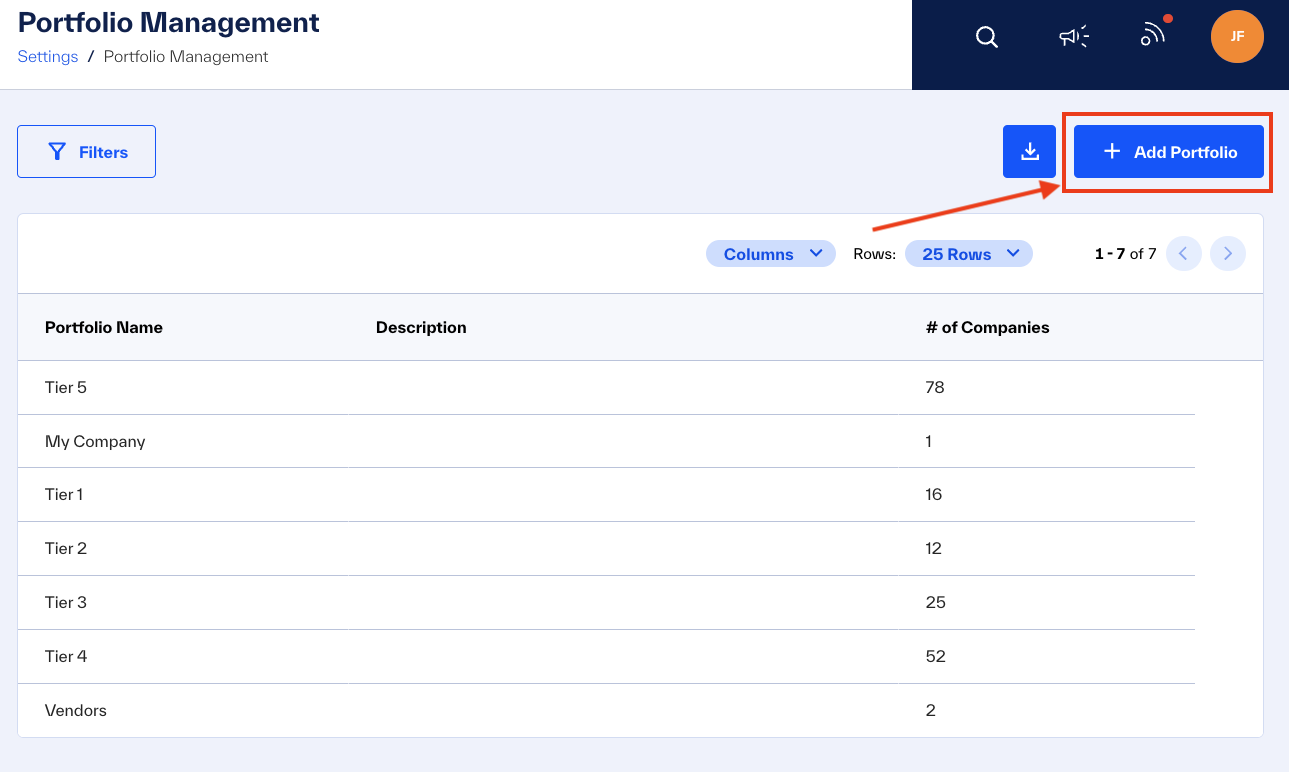 |
You can add a new portfolio by clicking the +Add Portfolio button on the top right of the Portfolio Management page. Clicking this button will bring up a modal where you can enter information about the portfolio.
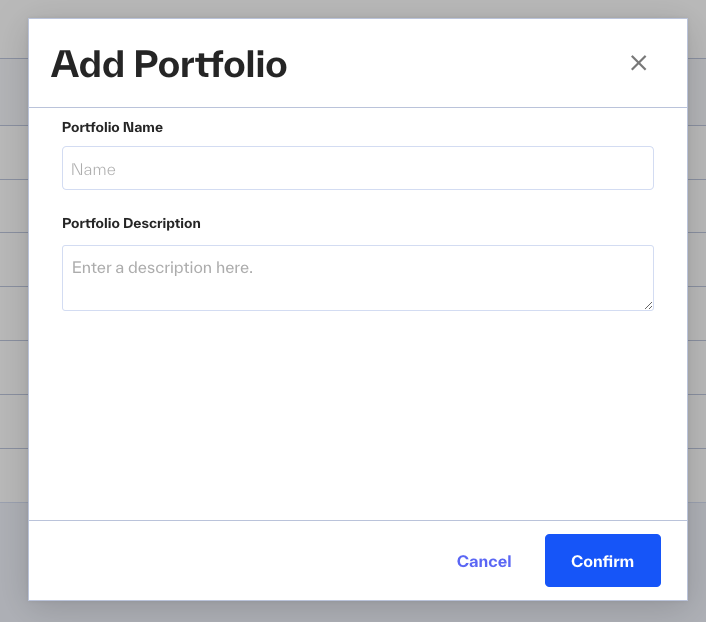 |
To create a portfolio, you need to enter the following pieces of information:
Portfolio Name - This field is required.
Portfolio Description - This field is optional.
You can cancel the account creation by either clicking the cancel button on the bottom or by clicking on the X button on the top right of the modal. To create the portfolio, you need to click on the confirm button once all required fields are submitted.
 |
Once you click the confirm button, you will be taken back to the portfolio management list page, where you should get a confirmation message as a pop-up on the top right of the page. You should also see the portfolio listed in the table.
Editing Existing Portfolios
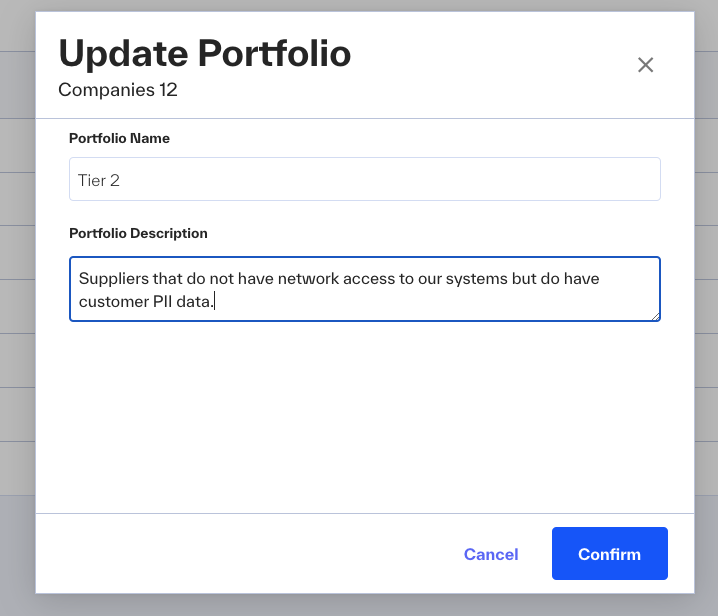
To edit an existing portfolio, click on the portfolio name in the table to bring up a modal where you can edit details associated with that portfolio
 |