Companies
The Companies page shows all the vendors, suppliers, and third-party companies you configured for BlueVoyant analysis and monitoring as part of your Cyber Risk Service. You can see the Risk Score, portfolios, findings, and risk tolerance status for each company.
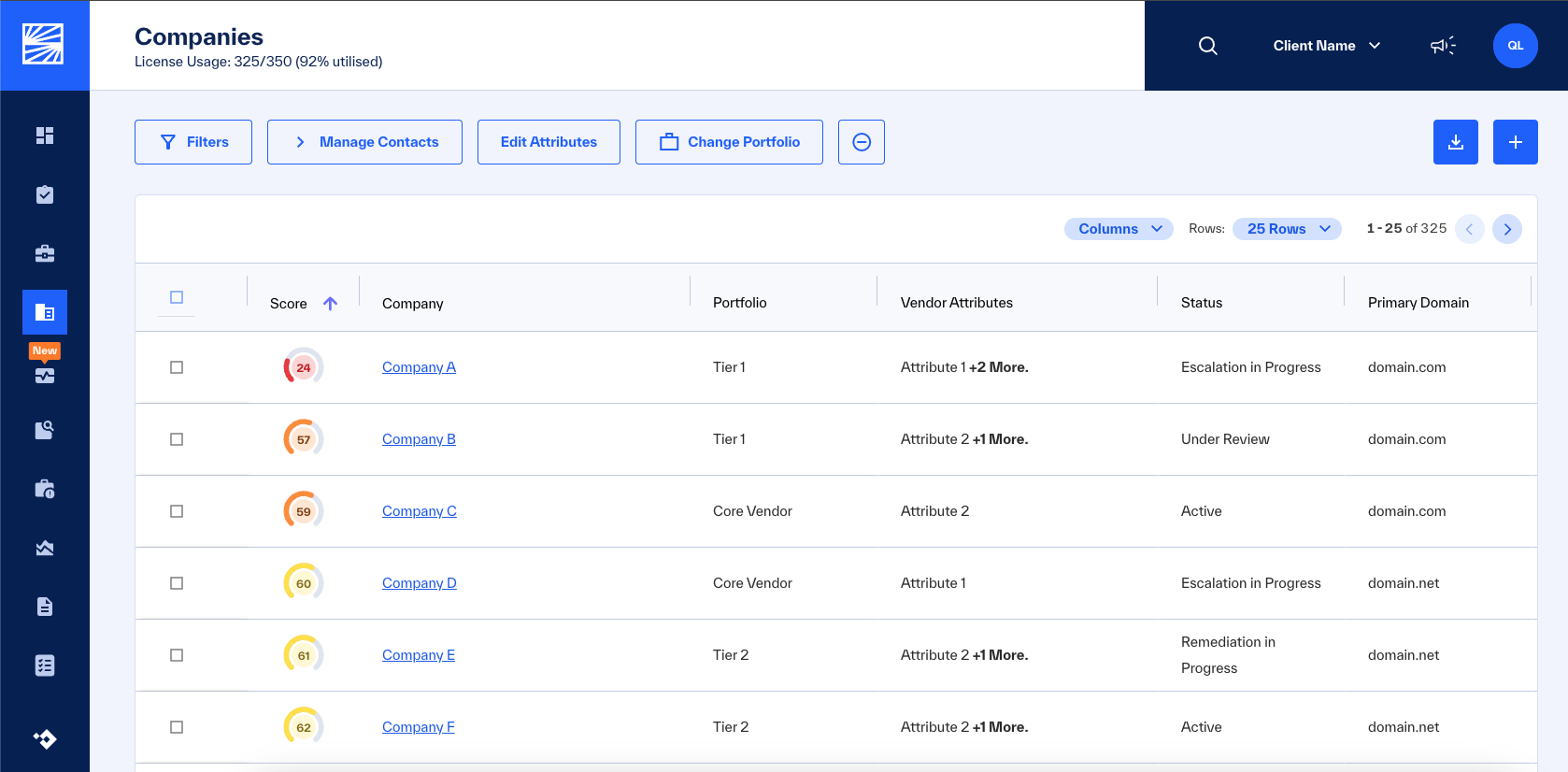 |
Each third-party company has a Company Profile in your Client Portal.
To open a company profile, click the company name.
Set Filters on Companies
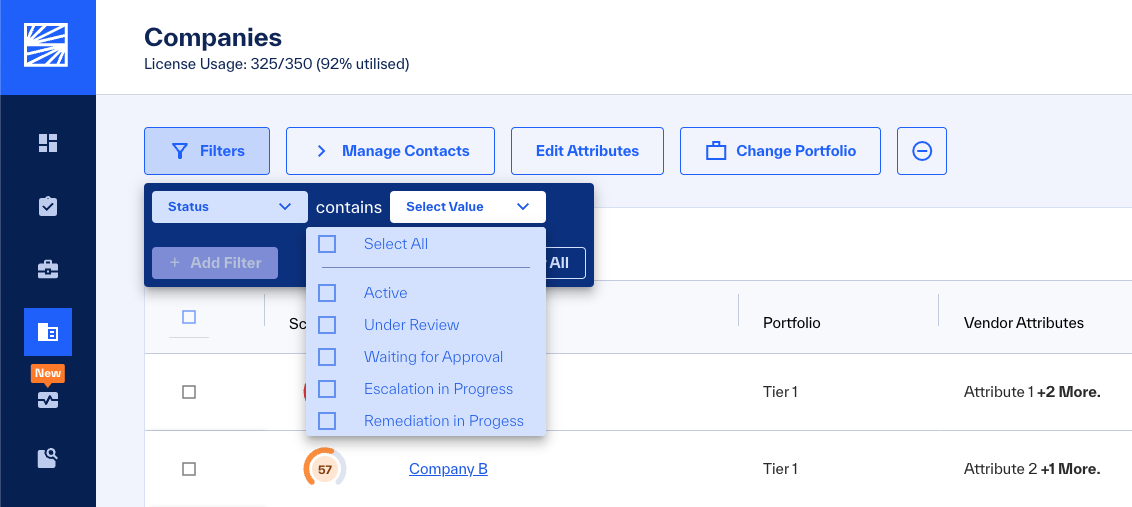
To apply filters in Companies, click . Select the filters to apply.
 |
Filter | Description | Values | |||||||||||||||||||||||||||||||||||||||||||||||
|---|---|---|---|---|---|---|---|---|---|---|---|---|---|---|---|---|---|---|---|---|---|---|---|---|---|---|---|---|---|---|---|---|---|---|---|---|---|---|---|---|---|---|---|---|---|---|---|---|---|
Score | See the companies with the selected risk scores |
| |||||||||||||||||||||||||||||||||||||||||||||||
Company | See the findings in the selected companies. | See Findings and Company Filter | |||||||||||||||||||||||||||||||||||||||||||||||
ID | See the companies with the selected ID (useful if company names are too similar). | See ID Filter | |||||||||||||||||||||||||||||||||||||||||||||||
Attributes [a] | See the companies with the selected attributes. | See Attributes | |||||||||||||||||||||||||||||||||||||||||||||||
Portfolio | See the companies in the selected portfolios. | ||||||||||||||||||||||||||||||||||||||||||||||||
Status | See the companies with the selected status. |
| |||||||||||||||||||||||||||||||||||||||||||||||
Exceeds Risk Tolerance | See the companies that exceed or do not exceed the risk threshold that you configured. |
| |||||||||||||||||||||||||||||||||||||||||||||||
Responsiveness | See the companies based on their responsiveness. |
| |||||||||||||||||||||||||||||||||||||||||||||||
Sector | See the companies in selected industries, from the North American Industry Classification System (NAICS). BlueVoyant identifies the NAICS code for a company when it calculates the footprint. | ||||||||||||||||||||||||||||||||||||||||||||||||
[a] Note If you cannot see the Attributes filter, you can request the Attribute service from your BlueVoyant project manager or CSM. | |||||||||||||||||||||||||||||||||||||||||||||||||
Company Filter
Filter the list of companies that you monitor, to see only those you select.
Click and then .
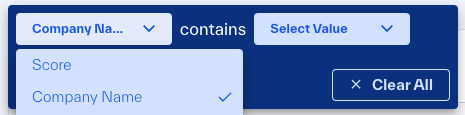
Click and enter three or more characters of the company name.
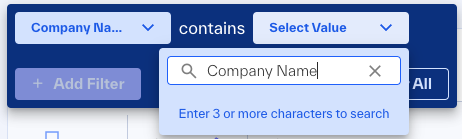
From the matched names, select the companies to show.
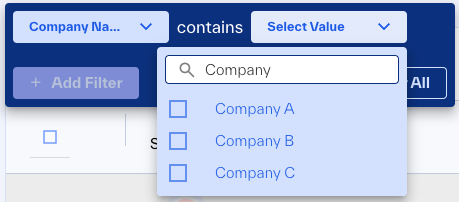
See the selected companies in the Companies list. Do the steps again to add more companies to the filter.
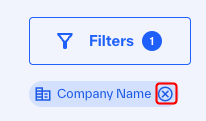
To remove a company from a filter, click the X next to the company name.
 |
ID Filter
Show the company with a selected ID.
Note
This filter is available only if you requested this service.
The name of the filter that you see may be different from ID, if you requested that the ROC configure it with a custom name.
On request, the BlueVoyant ROC can give an ID to each of your third-party companies that you monitor and enable the ID filter field. This helps you more easily find a specified company and its findings.
The ROC can also give unique IDs to departments or divisions in one third-party company.
Other IT management systems in your organization can use this entity ID for internal procedures.
The ID helps if:
Your company monitors may third-party vendors and suppliers, and the Company Name list is too long to select the correct one.
Multiple company names are almost the same, and it is not easy to select the correct one in the Company Name list.
Company names have non-Latin characters that you cannot enter.
If the ROC escalates a finding with the Entity ID, they include the ID in all emails for this case. Your internal systems can identify the ID and the correct third-party entity.
When you enable the ID Filter, it shows on Companies and Findings.
Click and then (or your custom name for the ID filter).
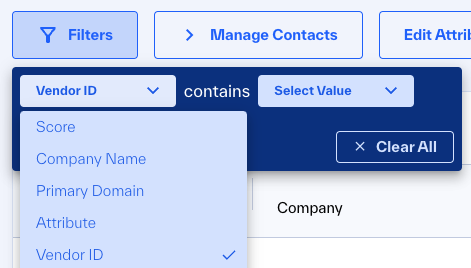
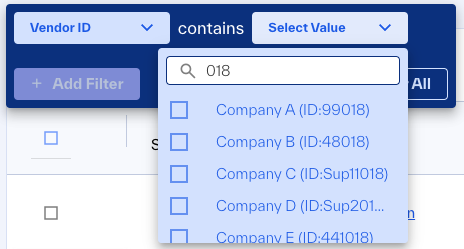
Click and enter three or more characters of the ID.
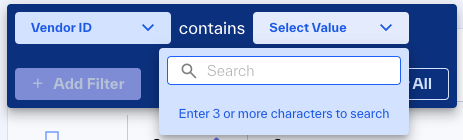
From the matched IDs, select the companies to show.
Note
If you see multiple IDs for one company, that company has IDs for departments or divisions.
See the selected companies in the Companies or Findings list. Do the steps again to add more companies to the filter.
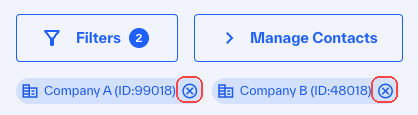
To remove a company from a filter, click the X next to the entity ID.
 |
Attributes
An attribute is a tag assigned to a company to make granular, custom filters. You can create attributes, or you can request that the ROC creates attributes for you.
Attribute filters are on Action Plan, Companies, and Findings. All Client Portal users and the ROC (if you request it) can create and change attributes.
For example, you can create a “Pending Review” attribute and apply it to companies that your organization may choose to work with. This makes it easy to compare the risk scores and escalations, to select the best option for your organization.
Select the checkbox of one or more companies.
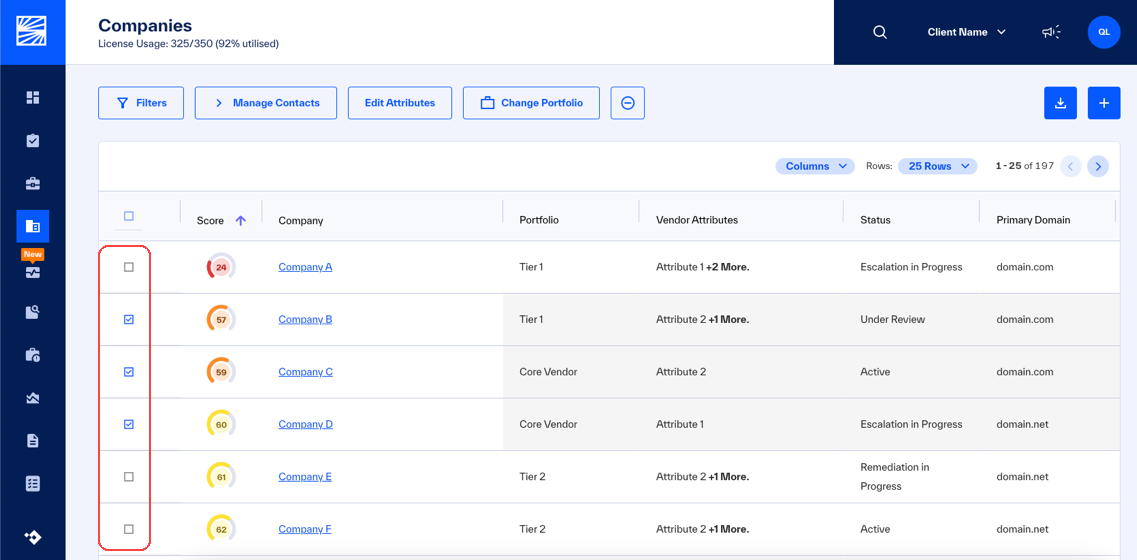
To select the companies you see in a filtered view, click the checkbox in the column header.
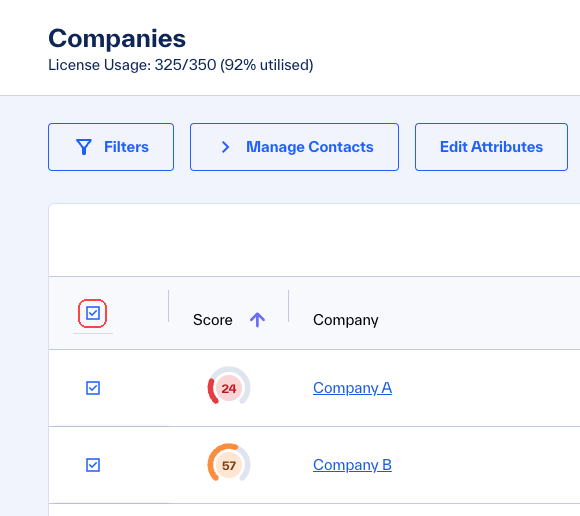
This selects all monitored companies, which is not effective for attributes.
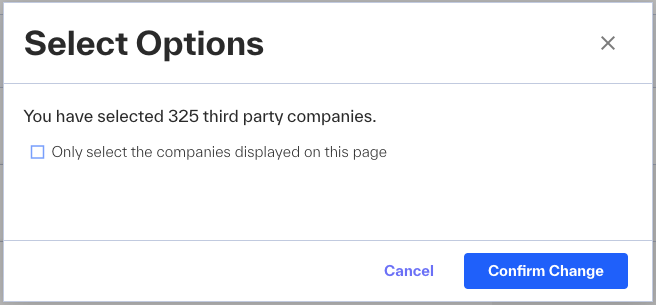
In the Select Options window that opens, select and then click .
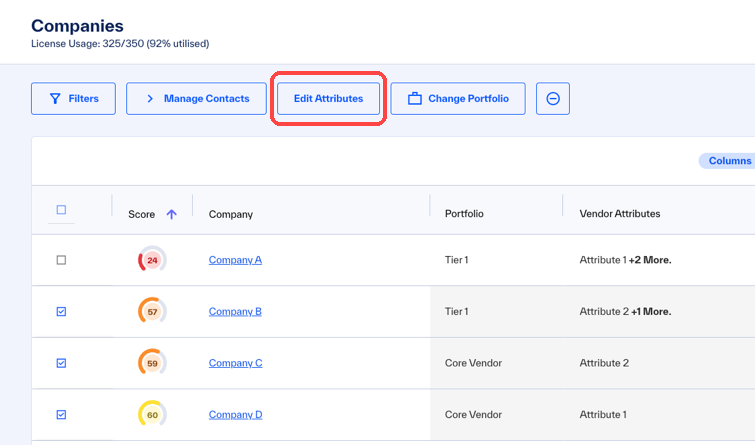
Click , which is available after you select a company.
The Edit Common Attributes window opens and shows attributes that are on all the selected companies. It does not show attributes that on some but not all of the selected companies.
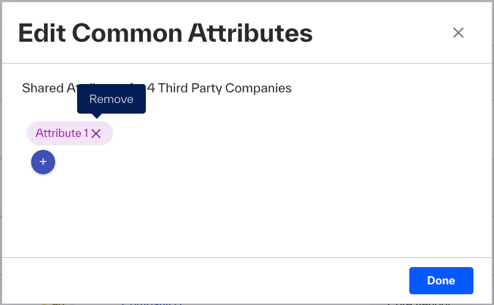
Click the X of the attribute.
Click Done.
In the Edit Common Attributes window, click the
 plus.
plus.In Apply or Create Attribute, enter the name of the attribute. As you enter characters, matched attributes show.
If the attribute exists, select it.
If the attribute does not exist, no matched attributes show. You will create a new attribute.
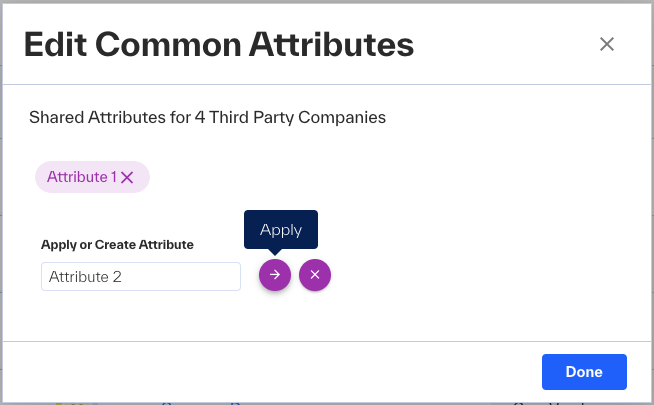
Click .
You can add more attributes.
Note
Attribute names are not case-sensitive. If you enter a name and there is a matched attribute, but you do not select it before you click , this error shows:
Duplicate attributes, regardless of case, are not supported.
Click Done.
Add a Company to Monitor
Before you start: In this procedure, you can create an entity ID for the company that you to your monitored companies. If you choose this, see your organization's guidelines for ID syntax, or see the IDs you have.
Important
Restricted Entities are telecoms, hosting companies, cloud providers, and universities that let their customers access the internet through their infrastructure as a function of their business, or allocate or lease IP space for their customers to use.
This can make it a challenge to set network boundaries between the corporate infrastructure and the customer infrastructure, and to configure security of the company versus that of its customers.
To maintain accuracy and to prevent the escalation of false positives due to unclear ownership of IP space, BlueVoyant restricts these organizations for monitoring. Talk to your BlueVoyant project manager or CSM.
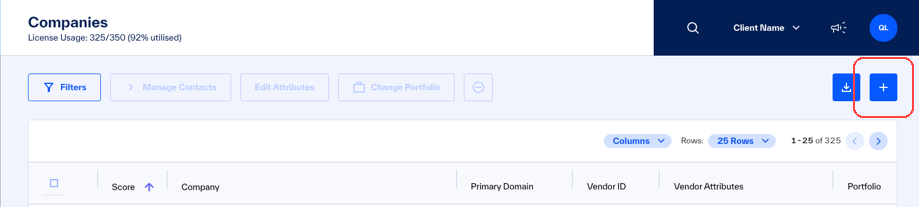
Open Companies and then click the plus (+).
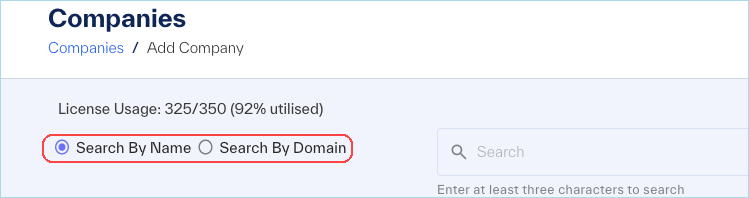
In Add Companies that opens, select Search by Name or Search by Domain.
Note
If you search by domain, you must enter the top-level domain name and the domain extension. For example, a search for abc.com will return ABC, Inc. A search for go.com will return go.com of Disney and abc.go.com of ABC, Inc.
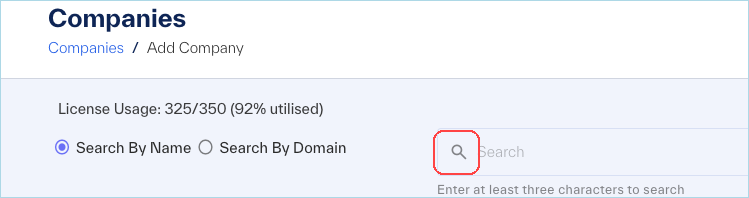
In the search field, enter three or more characters of the name or domain and then click the Search button.
Matched companies show in the results.
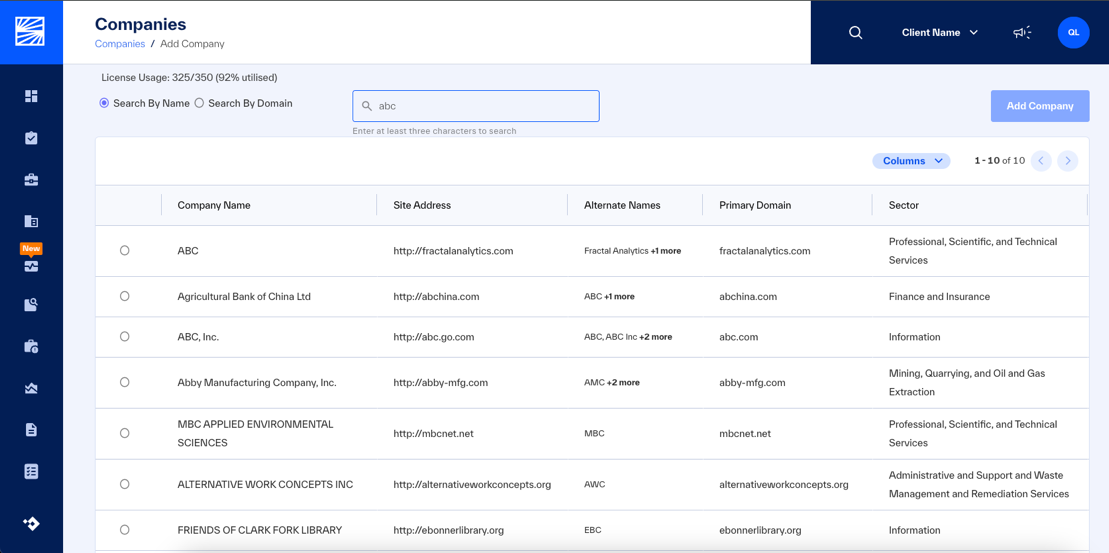
If the searched-for company is not in the results, there is no footprint for that company. Talk to your BlueVoyant project manager or CSM to request a footprint for this company.
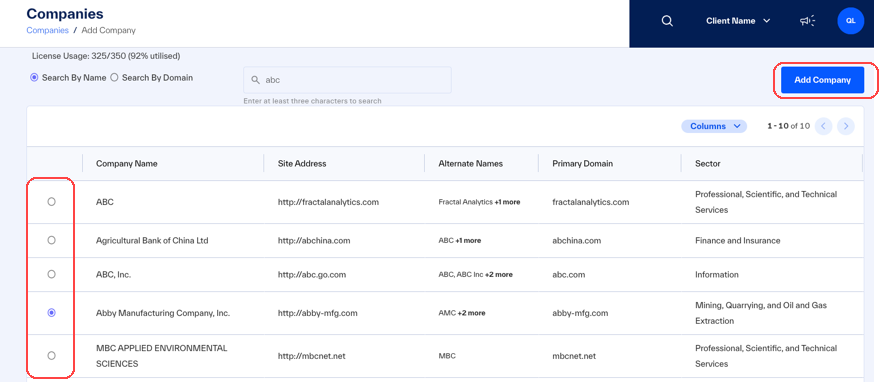
Select the company and then click Add Company.
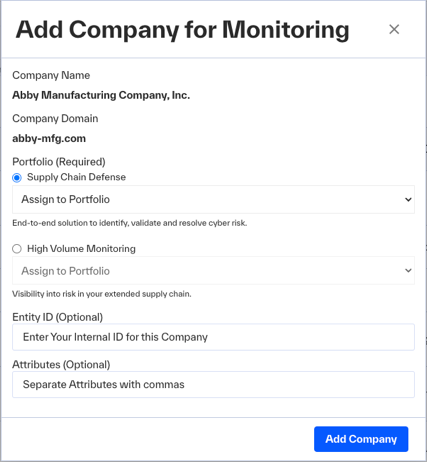
In the Add Company for Monitoring window > Portfolio, select Supply Chain Defense (standard portfolios) or High Volume Monitoring (added purchase service for portfolios).
In the selected section, click Assign to Portfolio and select a portfolio.
Optional: Enter a new, unique entity ID for this company.
Optional: Enter attributes for this company.
Click .
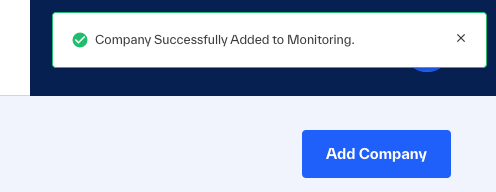
Note
It may take up to a day for escalations for this company to show.
Troubleshooting: If there are issues, you may see the Unable to Add Company message.
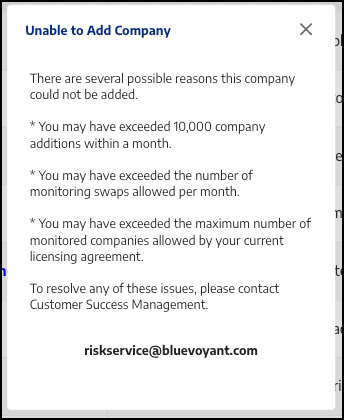 |
If you see this, contact the ROC at: riskservice@bluevoyant.com
Remove a Company from Monitoring
Users with permissions (see User Management) can remove a selected company, or group of companies, from monitoring.
In Companies, select the companies to remove and then click
 (Remove).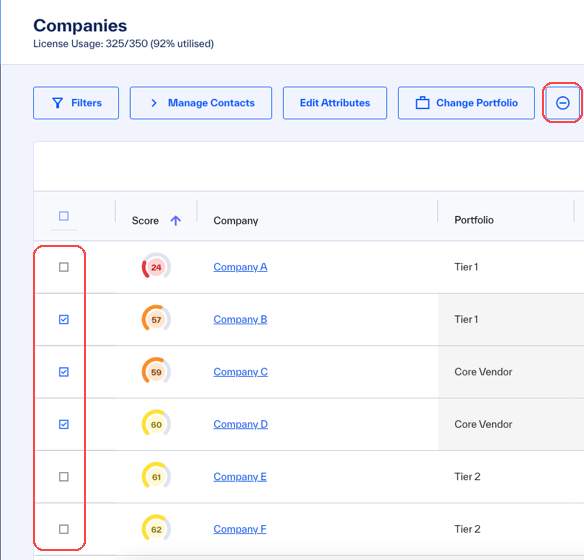
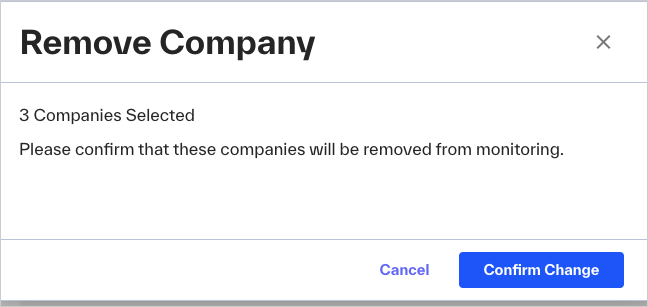
In the window that opens, review how many companies you selected, and if correct, click .